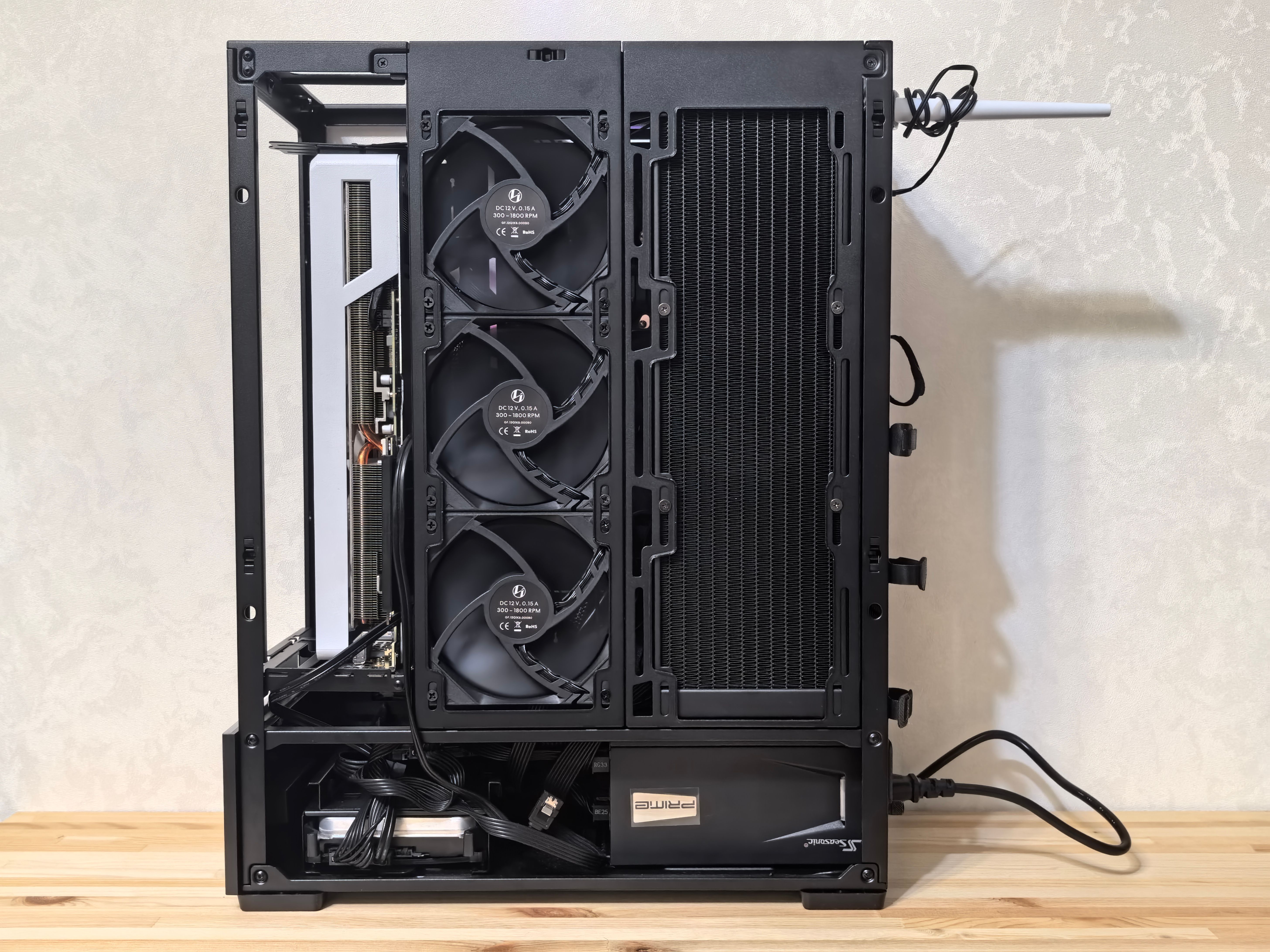
Is It Safe to Sit a PC Close to a Radiator? A Practical Guide to Thermal Realism, Risk, and Real-World Wisdom
If you’re like many PC enthusiasts, your desk doubles as a compact engineering workspace: a tangle of cables, a humming computer, and perhaps a radiator that quietly reminds you of the changing seasons. A Reddit thread about placing a PC near a radiator might seem like a small, technical concern. Yet it touches a larger, surprisingly nuance-laden topic: how heat moves in a inhabited workspace, how devices respond to ambient warmth, and how everyday assumptions can mislead us about safety, reliability, and performance.
In this piece, we’ll go beyond the instinctive “it doesn’t feel warm, so it’s fine” approach. We’ll unpack the physics of heat, the practical limits of consumer hardware, the real risks radiators pose to electronics, and sensible guidelines you can apply without turning your room into a rigid lab. We’ll also offer concrete, actionable steps to balance comfort, safety, and performance—whether you’re gaming, rendering, or simply browsing.
The heat question in a real room: what actually matters
- Temperature vs. temperature rise: Your radiator does not heat the air evenly or constantly, but it does raise the ambient temperature in its vicinity. What matters for electronics is not just the air temperature on a single moment, but the sustained temperature the components experience over their duty cycles. CPUs, GPUs, and power supplies are designed to operate within certain ambient ranges (often up to about 40–45°C ambient for many consumer components, with higher temperatures still possible but risking longevity). If the room is 27°C, a PC exhaust that sees 34–40°C air can push internal junction temperatures higher than in a cooler environment. If the radiator nudges the ambient a few degrees higher for long periods, you may shave a few degrees off the margin between safe operation and thermal throttling or degradation.
- Airflow dynamics matter more than distance alone: A radiator’s effect isn’t just about proximity; it’s about how air moves around and through the case. If a radiator is actively heating the room air and the PC is drawing air from that same space, the intake temperature can rise. Conversely, if you have a well-ventilated desk setup with a consistent, directed airflow (case fans, desk fans, exhaust paths), the impact can be mitigated.
- Radiation vs convection: Radiators primarily heat by convection—warm air rises and circulates. Objects near a radiator can absorb heat by convection and, in some cases, by radiant heat transfer, especially at close distances. The difference between “warming the air you breathe” and “warming the internal components through case intake” is subtle but meaningful.
What about 57 cm (roughly 22 inches) as you measured?
- Proximity is a cue, not a destiny: 57 cm is within a zone where a distribution of heat can be noticeable, but not universally dangerous. The critical questions are: is the radiator actively heating the room at full output for long periods? Is the PC’s intake matching the room’s warmed air or fighting it with directed cooling? Is the PC sealed well enough to prevent dust and heat buildup?
- Temperature is not uniform: The radiator may warm the air near the desk, but the PC’s internal temperatures depend on the instantaneous intake air, the efficiency of the cooling system, and the thermal design of the case. A 57 cm gap with a well-ventilated desk, a clean PC, and an efficient cooling layout is less risky than a cramped, dust-clogged setup with marginal airflow.
Potential risks you should consider
- Dust and filtration: Radiators, particularly those in central heating or hot-water systems, can be dusty. Dust in the radiator area can migrate to the PC’s intake, clogging filters and heatsinks, reducing cooling efficiency, and accelerating wear on fans. Regular cleaning of both radiator and PC intake is essential.
- Material compatibility and temperature cycling: Excessive ambient warmth over long periods can increase the thermal cycling the PC experiences. Repeated heating and cooling can stress solder joints and components, potentially affecting longevity, especially in budget builds or aging hardware.
- Fan and component stress: If ambient temperatures push the PC into semi-constant throttle, fans run more, which can shorten fan life and create more noise. In extreme cases, sustained high ambient temperatures can reduce PSU efficiency and elevate strain on voltage regulation components.
- Fire and safety considerations: Any radiator is a heat source. While modern radiators are designed with safety margins, there’s always a non-zero risk scenario for overheating or, in the worst case, ignition in unusual circumstances. The more you block air intakes or accumulate dust, the higher the risk of overheating or faults that could cause issues.
Practical guidelines you can apply now
1) Map the heat environment, not just the distance
– Measure ambient temperatures in the PC’s intake zone during normal operation, not just at startup. If you can borrow a compact thermometer, check the air temperature at the PC intake and inside the case (via a safe method) during gaming or heavy workloads.
– Compare to a control: temporarily move the PC away or adjust radiator usage. If the intake air cools by several degrees when you move the PC or reduce radiator load, proximity is contributing to the issue.
2) Prioritize airflow ergonomically
– Direct the PC’s intake away from the heated radiator air. If possible, angle the PC so that its intake faces away from the radiator or place the PC so that there is a clear path for cooler room air to reach the intake.
– Maintain a predictable hot-air exhaust path. A well-ordered desk with a clear path for warm air to escape will help prevent recirculation of hot air back into the PC.
3) Elevate the PC’s profile and improve isolation
– Elevate the PC slightly to allow air underneath to circulate; use a stand or riser that does not obstruct the exhaust airflow.
– Consider a modest barrier or shielding to prevent radiant heat from the radiator directly impinging on the PC’s side panels or intakes. A simple reflector/foil barrier or a low-profile heat shield can deflect radiant heat.
4) Maintain the radiator and the PC
– Clean both systems regularly. Dust is the quiet, persistent antagonist of any cooling strategy.
– Inspect cable management. Your note about “very shit” cable management is not just an aesthetic concern; poor cable routing can obstruct airflow and create hotspots within the case.
5) Tune the thermal expectations and workloads
– If you’re pushing workloads that drive high CPU/GPU temperatures, consider adjusting fan profiles to maintain a stable internal temperature rather than chasing peak performance at the expense of long-term wear.
– In a warmer room, real-world performance often benefits from slightly lower overclocking, more conservative voltage settings, or more aggressive thermal management to avoid thermal throttling.
6) Use sensible limits and checks
– Set a hard upper bound for temperatures you’re comfortable with (for example, CPU under full load staying below 85°C and ambient room below 30–32°C). If you consistently see higher ambient temperatures, re-evaluate placement.
– Consider a thermometer-based alert: a simple sensor near the PC that notifies you if the ambient crosses a threshold can be a discreet safety net.
A broader perspective: what the evidence, industry practice, and common sense tell us
- Real-world reliability hinges on more than a single metric. Temperature margins, dust control, airflow efficiency, and consistent cooling performance over time all contribute to long-term reliability.
- Infrastructure matters. If your space is dominated by a radiator, you may want to consider separate zones for living and computing activities, or at least implement a cooling plan that treats the PC as a device that benefits from dedicated airflow rather than ambient heat.
- The debate is not binary. Some setups tolerate proximity better than others, particularly if they feature modern, efficient cooling solutions (high-quality case fans, ITX builds with tight tolerances, or liquid cooling setups). Yet most mainstream desktops still perform best when their intake air is close to a cool, stable ambient environment.
A considered conclusion: should your PC sit near a radiator?
There isn’t a universal “yes” or “no.” The safety and reliability of a PC near a radiator depend on a constellation of factors: the radiator’s heat output at the time, the room’s overall temperature, the PC’s cooling design, dust levels, and how well airflow is managed around the desk. If you can maintain a cool intake air path, keep the radiator less of a heat source in the immediate PC vicinity, and monitor temperatures under load, placing a PC at roughly 50–60 cm away can be acceptable for many setups.
What’s more important than the precise distance is a disciplined approach to airflow, maintenance, and monitoring. Treat the radiator as a heat source you can actively manage rather than a passive background condition. Regular cleaning, thoughtful cable routing, a modest rise or shield to deflect radiant heat, and a plan for how to respond when ambient temperatures rise will keep your PC healthy, quiet, and performing reliably.
If you’d like, share the exact case model, radiator type, fan configuration, and a typical workload (gaming, rendering, or other) along with room dimensions and typical ambient temperatures. With those details, we can sketch a tailored heat-management plan that balances comfort, safety, and performance—without turning your workspace into a laboratory.
