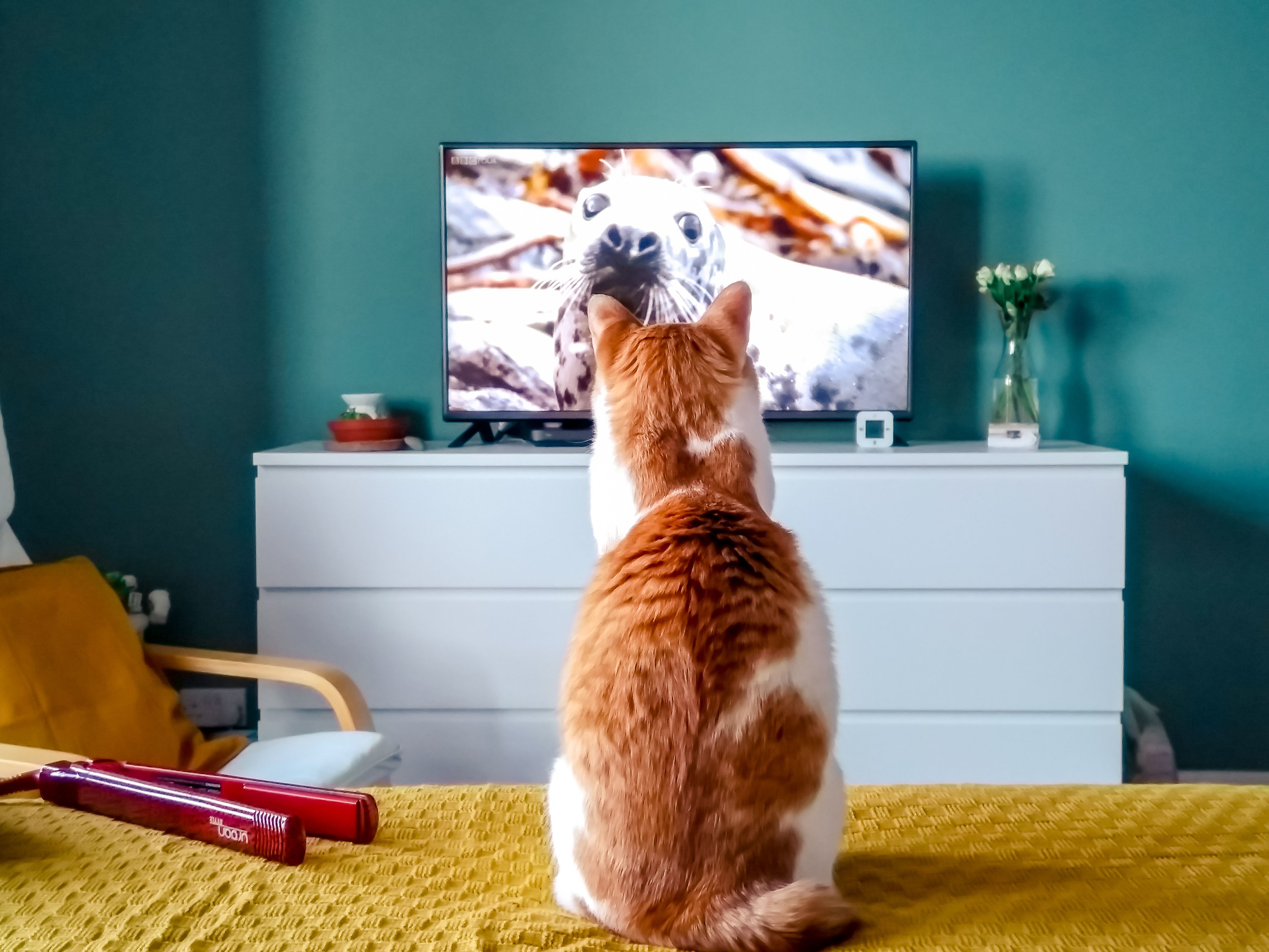
Title: The Tail-Wagging Question: How to Run YouTube on Your TV Continuously for Your Cat (Without Repeated “Are you still watching?” Prompts)
If you’ve ever tried to leave a streaming device running in the background for a beloved pet, you know the peculiar obstacle: the interface that assumes someone’s watching and periodically asks, “Are you still watching?” For a cat owner hoping to keep a comforting, endlessly looping sensory experience on screen while away, it’s more than a minor annoyance—it’s a barrier to animal enrichment. This piece isn’t a simple how-to; it’s a practical guide to re-engineering your viewing setup so a four-legged companion can enjoy a steady stream of cat-friendly visuals without interruption, while balancing safety, reliability, and humane considerations.
1) Why “Are you still watching?” interrupts matters of care and enrichment
Cat television (or “cat TV”) has become a common, low-maintenance enrichment strategy for felines left alone for stretches. The premise is straightforward: moving images—birds, mice, fluttering insects—trigger natural predatory and play behaviors, promoting mental stimulation and reducing boredom-induced stress. But the most common consumer interfaces are built around human usage patterns: you’re watching, you might step away, so they periodically check for activity. The prompt is usually triggered by a device’s inactivity timer or the streaming app’s “watch history/idle” logic. For a viewer actively supervising, the prompt is convenient; for a pet-focused, long-duration setup, it becomes a nuisance or a technical bug. The practical concern is ensuring uninterrupted playback, while also not encouraging unsafe habits (leaving a TV on at high volume or with bright screens for hours on end without oversight).
2) A practical framework for continuous playback: design goals and constraints
Before diving into settings, establish a few guardrails and expectations:
- Continuity vs. safety: You want the stream to loop endlessly with no manual intervention, but you should account for power reliability, heat generation, and screen brightness.
- Content suitability: Bird and mouse videos are popular because they mimic natural stimuli. However, ensure the content is visually engaging without rapid flashing that could trigger stress in some animals.
- Device ecosystem: Roku, Amazon Fire TV, Chromecast with Google TV, Apple TV, and smart TVs each handle apps and idle-app behavior differently. The solution often lies in a combination of app settings and device-specific features rather than a single universal toggle.
- Remote management: If you’re away for 40 hours, you’ll benefit from a way to restart the stream or perform a soft reboot remotely if needed, without disturbing your cat.
3) Diagnosing the problem: where the pause comes from
The most common culprits behind “Are you still watching?” prompts are:
- Inactivity timers: The streaming device assumes no input for a set period and prompts the user.
- Streaming app policies: YouTube and other platforms may implement periodic checks to prevent passive viewing and conserve bandwidth.
- Power/HDMI-CEC quirks: Some devices pause or reset when HDMI-CEC signals alternate, or when screen sleep settings activate.
- Web vs. app distinction: A browser-based YouTube feeding to a TV can behave differently from a native app.
Understanding which of these applies to your setup will guide the solution. If you’re unsure, a methodical approach—test with a shorter loop, vary inputs, note if the prompt appears after a consistent interval, and check device logs if available—will illuminate the root cause.
4) A practical, device-specific playbook (typical scenarios)
Note: The exact steps may vary by model and software version. Use these as a map, not a substitute for your device’s manual.
A. You’re using a smart TV’s built-in YouTube app
– Objective: Disable idle prompts and keep playback looping.
– Steps to try:
– In YouTube: Sign in, start a playlist or long-form cat video. Let it run, then access the app’s settings during playback. Look for “Remind me to take a break” or “Announce playback” or “Idle timeout.” Many apps don’t expose a direct toggle, but some have a “Continue playing” preference that can be set to always on.
– TV power settings: Ensure Screen Off Timer or Sleep Timer is set to the maximum or disabled. If the TV enters sleep mode, playback may stop.
– HDMI-CEC: If available, try disabling HDMI-CEC (often labeled Quick Setup > Anynet+/Bravia Sync, etc.). Sometimes CEC activity can cause a pause when the source tries to negotiate with the display.
– Test: Create a 15–30 minute loop to see if the prompt reappears. If it does not, the issue is likely the idle timeout or app policy.
B. You’re using a streaming device (Roku, Fire TV, Chromecast)
– Objective: Achieve uninterrupted looping for hours.
– Steps to try:
– On-fire TV/Chromecast: Use a dedicated “loop” playlist in YouTube. Some YouTube apps support an auto-play chain within a playlist; ensure the end of one video auto-plays the next. If needed, use a browser-based casting route from a laptop or mobile device that maintains continuous playback without app-imposed prompts.
– Disable break reminder: Check the device’s system settings for “Do not disturb” or “Auto sleep” modes, ensuring they won’t disrupt playback.
– Disable wake-to-view prompts: Some devices offer a setting like “Ask to resume after idle” or “Confirm playback.” If present, disable it.
– Background playback: If the device supports background playback in premium modes, enabling it may reduce interruptions, but this depends on the app and device.
C. You’re using a streaming stick via HDMI-connected display (HDMI input)
– Objective: Eliminate any prompts and ensure the chain remains active.
– Steps to try:
– Use a loop-friendly video playlist: The safest approach is to assemble a single long playlist (e.g., one continuous “cat TV” channel) rather than separate independent videos.
– Cast once, then lock the session: Start playback on a connected device and cast to the TV. Keep the controlling device in a standby state rather than actively interacting; this sometimes reduces inactivity prompts.
– Power management: Ensure the TV’s energy-saving features are disabled or set to a long delay. Some TVs auto-pause when no signal is detected or when energy-saving modes trigger.
5) Alternatives and enhancements that genuinely help feline enrichment
- Dedicated cat-channel hardware: Consider a purpose-built pet monitor or a dedicated media device designed to run for extended periods with minimal human interaction. Some products offer “pet mode” or “always-on” playback, with simpler interfaces and schedules optimized for enrichment rather than human convenience.
- Create a curated loop with reliability in mind: Rather than relying on a single video, compile a single long, seamless sequence from legally licensed content that runs indefinitely. Hosting platforms or your own local media server can facilitate continuous looping without platform-imposed prompts.
- Environmental enrichment as a supplement: Screen time is helpful, but it should be part of a broader enrichment strategy: rotate visuals to prevent habituation, provide interactive toys, window views, perch stations, and scheduled playtime. A content library that cycles through different stimuli (bird chirps, rustling leaves, moving toys) can keep engagement high without overexposure to one stimulus.
- Safety considerations: Keep brightness at a comfortable level to avoid eye strain for your cat, and monitor acoustics. Volume that is too loud or sudden can startle. Also, ensure the device is in a well-ventilated area to prevent heat buildup during long runs.
6) What I’d consider a best-practice setup for a 40-hour run
- Use a simple, robust player configuration: Build a local, endlessly looping playlist (even offline) on a device that you trust to stay online and uninterrupted. If you rely on YouTube, choose a playlist that has the “autoplay next” feature enabled and minimize the opportunity for the app to interpret inactivity as a reason to pause.
- Remove as many potential interruptions as possible: Disable auto sleep, reduce the risk of a forced login session expiry by keeping a stable network connection, and turn off on-device notifications that might disrupt playback.
- Plan for contingencies: If the device does pause, have a remote control mechanism or a scheduled restart script. For example: a smart plug with a timer can cut power and reset the system if needed, but use caution—restarting should be a last resort to avoid disturbing the cat with a full reboot.
7) A humane, reader-centered conclusion
In the end, the goal isn’t merely technical uninterrupted playback; it’s ensuring your cat experiences meaningful, consistent enrichment while you’re away. This means harmonizing the reliability of the technology with the animal’s welfare. If you can approximate a continuous sensory environment that is engaging, comforting, and safe, you’ve achieved a small, humane triumph in pet care.
If you’d like, share your device type (TV model, streaming box, or game console) and your YouTube setup (whether you’re playing a curated playlist, a single video, or a live channel). I can tailor a more precise, step-by-step protocol that fits your hardware and software versions, helping you minimize interruptions and maximize your cat’s comfort during your absence.
