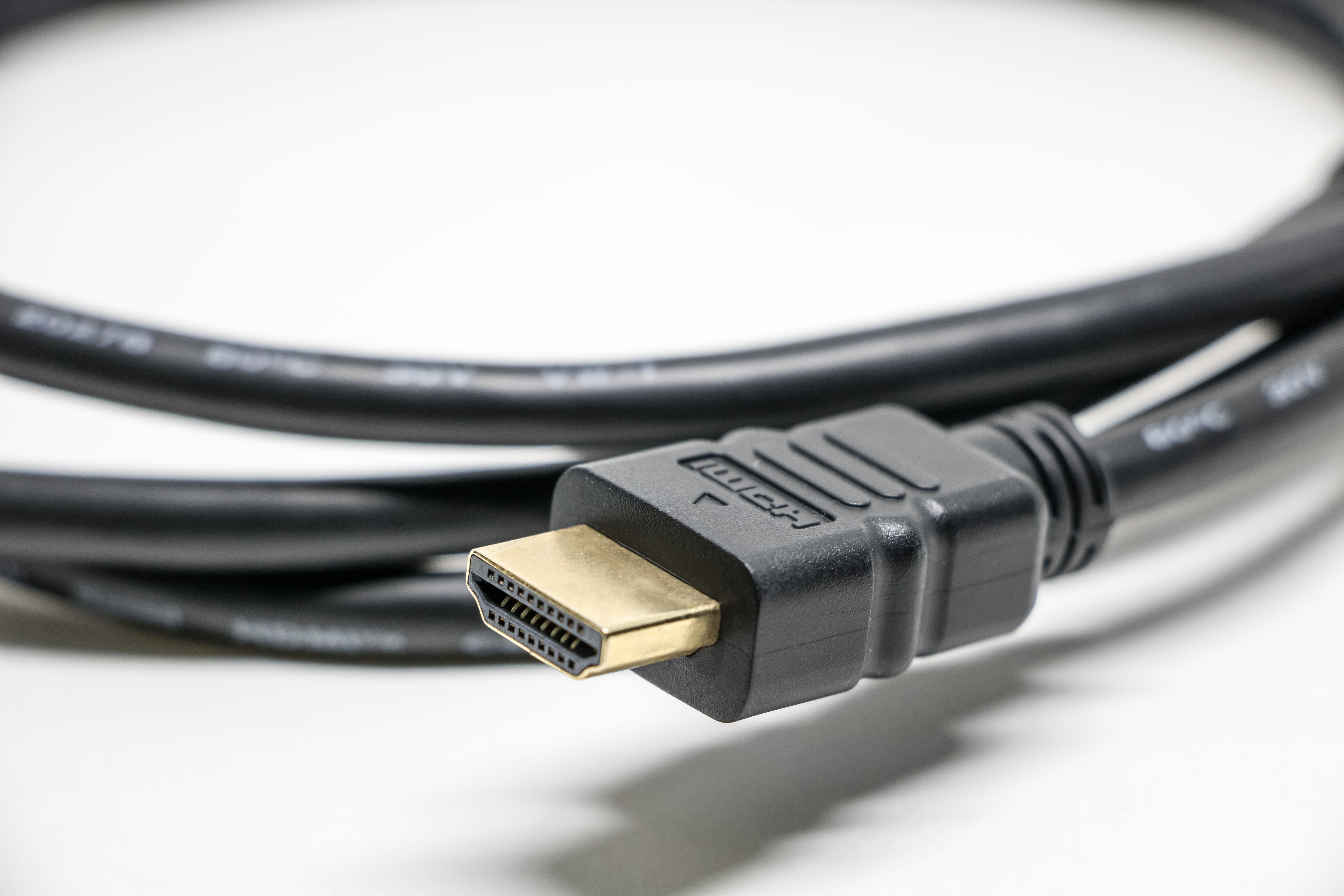
Why 240 Hz Monitors Don’t Always Live in the HDMI World
If you’re chasing buttery-smooth gaming, you’ve probably heard the promise of 240 Hz. The idea is simple: more frames per second should translate into crisper motion, reduced input lag, and a more responsive feel. But in practice, many gamers stumble at the starting gate—particularly when their eye is drawn to a single, familiar question: do 240 Hz monitors require DisplayPort to unlock their true refresh rate, or can HDMI do the job just as well? The answer isn’t one-size-fits-all, and the nuances matter for people who want reliable, high-performance gaming without guesswork. Here’s a thorough, practical guide to understanding what actually limits 240 Hz: the cable, the connector, the monitor’s settings, and the rest of your hardware.
1) The core distinction: bandwidth and timing, not just a label
At a glance, HDMI and DisplayPort look interchangeable. They’re both capable of carrying high-resolution video and audio signals, and modern GPUs ship with multiple ports. But their internal bandwidth models, signaling schemes, and the way monitors negotiate capabilities can produce real-world differences.
- Bandwidth matters. 240 Hz at 1080p is a far lighter burden than 4K at 120 Hz. If you’re targeting 1080p or 1440p at high refresh, both HDMI and DisplayPort can often handle it, but the exact version matters. For example, HDMI 2.0 has roughly 18 Gbps of raw bandwidth, which is sufficient for 1080p at 240 Hz or 1440p at modest chroma subsampling. HDMI 2.1 dramatically expands this headroom, enabling higher resolutions and refresh rates with more headroom for features like Variable Refresh Rate (VRR). DisplayPort 1.2 and above also offer generous bandwidth for high-refresh scenarios.
- Protocols and EDID. The monitor and GPU “negotiate” capabilities via EDID (Extended Display Identification Data). If your system and cable don’t properly communicate the full capability, you might be limited to a lower refresh rate even if the hardware is capable of more. This is a common source of confusion when moving between HDMI and DisplayPort.
2) Real-world constraints that actually matter
- Cable quality and version. Not all cables are created equal. A purported HDMI 2.0 cable may be “good enough” for 1080p/60, but in practice some cables fail to reliably carry 240 Hz at 1080p or 144 Hz at higher resolutions, particularly when long runs or older HDMI versions are involved. The same applies to DisplayPort cables; a certified DisplayPort 1.2 or 1.4 cable can be critical for stable 240 Hz at higher resolutions.
- Monitor capabilities and input options. Not every monitor that ships with a 240 Hz panel exposes 240 Hz on every input. Some gaming monitors implement 240 Hz on DisplayPort but only 120 Hz on HDMI, or require certain settings to be enabled (such as “DP 1.4 mode” or equivalent VRR modes). Firmware revisions can also affect which inputs support high refresh rates.
- GPU output and drivers. Even if the monitor is technically capable of 240 Hz through a given input, the GPU must also support that mode in its driver, and the correct output must be selected. In some cases, driver updates, OS-level settings, or a reboot are needed to re-enumerate capabilities after a switch of ports or cables.
3) A practical diagnostic approach
If you’re trying to get from 60 Hz to 240 Hz, here’s a sane, methodical way to verify what’s going on and how to fix it:
- Confirm the monitor’s 240 Hz input. Check the manual or the on-screen display (OSD) to determine which inputs (HDMI vs DisplayPort) actually support 240 Hz. Some models require DP to hit 240 Hz or to enable a “high refresh mode” in the settings.
- Use a certified cable of the appropriate type. Use a Cable that is certified for the version you intend to run. If you’re aiming for 240 Hz at 1080p, HDMI 2.0 or DP 1.2+ cables should suffice, but you’ll want a reliable, short run to minimize signal integrity issues.
- Switch the input and enable high refresh. On many gaming monitors, you must manually select the input and then enable the “240 Hz” mode or ensure VRR is active. The monitor may list 60 Hz, 120 Hz, 144 Hz, and 240 Hz as separate modes; pick 240 Hz explicitly rather than assuming automatic negotiation.
- Verify GPU output. In your graphics control panel (NVIDIA Control Panel, AMD Radeon Software, or Intel Graphics Command Center), ensure the refresh rate is set to 240 Hz for the chosen resolution and input. Sometimes you must create a custom resolution or adjust the refresh rate in Windows display settings as well.
- Test with the simplest configuration first. Start with 1080p at 240 Hz, using the DisplayPort input if possible. If HDMI is the only option, test with a short, certified HDMI 2.0/2.1 cable and verify that the monitor recognizes the full mode. If problems persist, try a fresh driver install or reset the monitor’s settings to factory defaults and reconfigure.
4) Why your personal experience might have involved a happy transition from HDMI to DP
Your anecdote—that switching to DisplayPort unlocked 240 Hz after manually selecting the right output on the monitor—tracks with common experience. Several factors often converge:
- EDID mismatch or misreading. Some GPUs or operating systems may “lock” a lower mode on HDMI, requiring a port switch to force the monitor to re-negotiate capabilities. DisplayPort frequently maintains a cleaner, more predictable path for high-refresh modes in gaming setups.
- VRR and adaptive sync compatibility. While both HDMI and DP can support VRR, the implementation on monitor firmware and GPU drivers can differ. A high-refresh mode may become available only when VRR is enabled, which sometimes behaves more reliably on DP.
- Firmware and software quirks. A firmware hiccup in the monitor or a driver hiccup in the GPU can cause a particular input to stall at 60 Hz until you explicitly select the higher mode or re-plug the cable.
5) Broader considerations: beyond the plug
- Do you need 240 Hz for your use case? 240 Hz is most valuable in fast, competitive gaming where human reaction times are being tested at the margins. For single-player campaigns with cinematic pacing, 144 Hz often provides a satisfying balance between fluidity and GPU load. Consider your genre, your frame time targets, and your tolerance for per-frame microstutter.
- Frame time consistency trumps raw Hz. A smooth experience at 180–200 Hz with perfectly consistent frame times can feel more responsive than a choppy 240 Hz with occasional frame drops. Don’t chase Hz in isolation; look at frame times, input lag, and motion clarity.
- VRR as a stabilizer, not a guarantee. Variable Refresh Rate helps prevent tearing and stutter when frame times fluctuate. However, enabling VRR may interact with certain anti-aliasing settings or game engines in unpredictable ways. Test with and without VRR to understand the net effect on your experience.
6) A pragmatic conclusion for builders and gamers
- If you own a monitor that explicitly supports 240 Hz on DisplayPort, start there. DP is typically the most reliable path to high-refresh performance, especially on PC gaming rigs where you can control the EDID negotiation precisely.
- If HDMI is your only option, use a certified high-bandwidth HDMI cable, ensure your monitor’s input is configured to 240 Hz, and verify the GPU driver and OS settings. Be prepared for a potential reset or a driver update to align the hardware’s capabilities with the monitor’s expectations.
- Always test with real games and real conditions. Benching in a neutral environment can help verify that the mode you’ve chosen actually delivers consistent frame times and responsive input.
The bottom line: 240 Hz is not an automatic guarantee on HDMI, nor is it a mysteriously reserved privilege of DisplayPort. It is a negotiated outcome that depends on the capabilities of the monitor input, the cable, the GPU, and the software stack. With careful verification—checking the monitor’s supported inputs, using a proper cable, and ensuring the correct mode is explicitly selected—you can achieve the buttery motion that 240 Hz promises. Your experience, in which DP unlocked the higher refresh, reflects a common, instructive pattern: sometimes the path to peak performance is less about the connector and more about the precise handshake between hardware and firmware.
